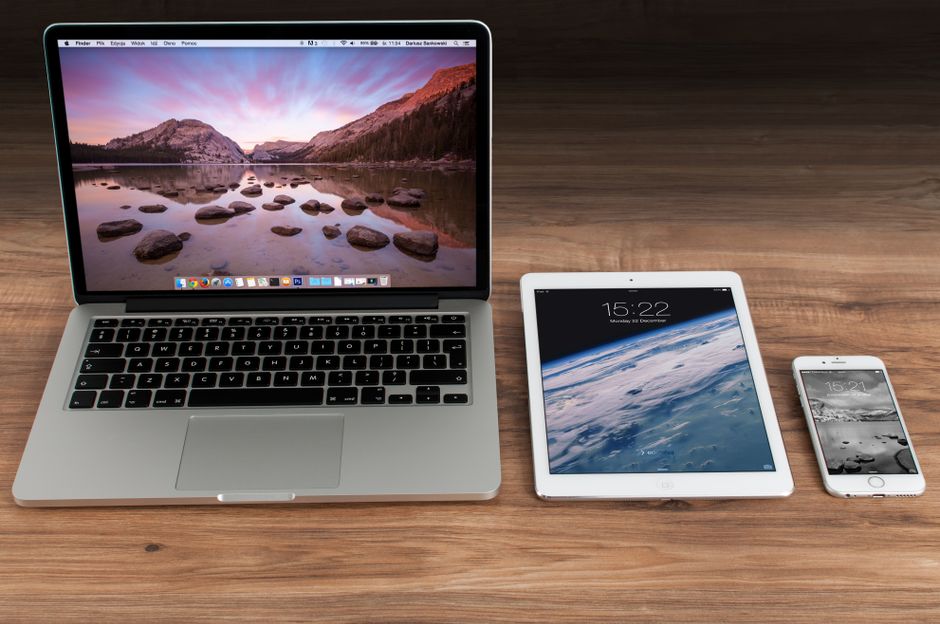
Wireless debugging lets you run and debug an app on a real device without a cable. It is essential for Apple TV 4K, which has no USB port, and handy for iPhones and iPads when the cable is out of reach. Network debugging first shipped with Xcode 9, iOS 11 and tvOS 11, and the setup flow is still built on the same Devices and Simulators window.
The usual complaints are that the “Connected over the network” icon never shows up, the “Connect via network” option vanishes once you unplug the cable, or the device lands in the disconnected list.
Why this happens
Wireless debugging depends on a one-time pairing between the Mac and the device, and then on both of them being able to see each other on the local network. If either part fails, Xcode treats the device as disconnected.
Common causes:
- The Mac and the device are on different networks or subnets (for example, one on a guest Wi-Fi or a VPN).
- The device has no passcode. Remote debugging requires one.
- A firewall or security tool blocks the discovery traffic.
- The pairing was never completed, or the device name is stuck in the disconnected list after unplugging.
Local-network discovery is flaky in some setups. That is why the manual IP route (fix 3) often works when automatic discovery does not.
How to fix it
1. Pair an iPhone or iPad over USB first
This is the standard route.
- Make sure the device has a passcode set. Add one if it doesn’t.
- Put the Mac and the device on the same Wi-Fi network.
- In Xcode, choose Window > Devices and Simulators and click the Devices tab.
- Connect the device to the Mac with a cable.
- Select the device in the left column. In the detail area, tick Connect via network.
- Wait for Xcode to pair. A network icon should appear next to the device name in the left column.
- Unplug the cable.
The device should now show up in the run destination menu without a cable. If it doesn’t, restart the device, toggle Wi-Fi on both sides, and try again. The original guidance notes this setup sometimes just needs a restart of the device or the network connection.
Requirements from the source: Xcode 9 or later, macOS 10.12.4 or later, and iOS 11 or tvOS 11 or later on the device. Any current Xcode setup exceeds these.
2. Set up an Apple TV
Apple TV 4K has no USB port, so you pair it entirely over the network.
- Put the Mac and the Apple TV on the same network.
- On the Mac, open Window > Devices and Simulators and select the Devices tab.
- On the Apple TV, open Settings > Remotes and Devices > Remote App and Devices.
- The Apple TV starts searching for nearby devices, including your Mac. If you run a firewall or internet security software and nothing appears, turn it off temporarily so discovery can work.
- On the Mac, select the Apple TV in the Devices list. The pane shows the status of the connection request.
- Enter the verification code shown on the Apple TV into the pane in Xcode and click Connect.
Xcode then pairs with the Apple TV and enables wireless debugging.
3. Use Connect via IP Address when the icon never appears
A common report: you tick Connect via network, but the network icon never shows, and as soon as you unplug the cable the option disappears and the device moves to the disconnected list. In that case, connect by IP address.
- On the device, open Settings > Wi-Fi and tap the info button next to your network to read the device’s IP address.
- In Xcode’s Devices and Simulators window, find the device under the disconnected list.
- Right-click the device name and choose Connect via IP Address…
- Type the device IP address and click Connect.
Reported by users as working even when automatic discovery fails. If the device’s IP changes (a new DHCP lease, for example), repeat the steps with the new address. A fixed DHCP reservation on your router avoids that.
4. Reset the connection
If nothing works, run through a short reset:
- Restart the device and reopen Xcode.
- Turn Wi-Fi off and on on both the Mac and the device.
- Confirm neither is on a VPN and both are on the same SSID and subnet.
- Reconnect the cable and untick then re-tick Connect via network to trigger pairing again.
- Check that the device is unlocked and trusts the Mac when the prompt appears.
How to prevent it
- Always set a device passcode before trying to pair.
- Keep the Mac and test devices on the same trusted network, not a guest network or one with client isolation.
- Finish the first pairing over USB, and wait for the network icon before unplugging.
- Give frequently used test devices a DHCP reservation so the IP stays the same for Connect via IP Address.
- Allow Xcode through your firewall instead of disabling the firewall permanently.
FAQ
Why does Connect via network disappear when I unplug the cable?
It usually means the pairing didn’t complete or the device can’t be discovered on the network, so Xcode lists it as disconnected. Use right-click > Connect via IP Address on the disconnected entry, or check that both devices share the same network.
Do I need a cable at all for Apple TV?
No. Apple TV 4K is paired entirely over the network, using the Remote App and Devices screen and a verification code from the Apple TV.
Does wireless debugging need a passcode on the iPhone?
Yes. The device must have a passcode before remote debugging can be enabled.
Parts of this guide are adapted from content licensed under CC BY-SA 3.0; this article is shared under the same license.